
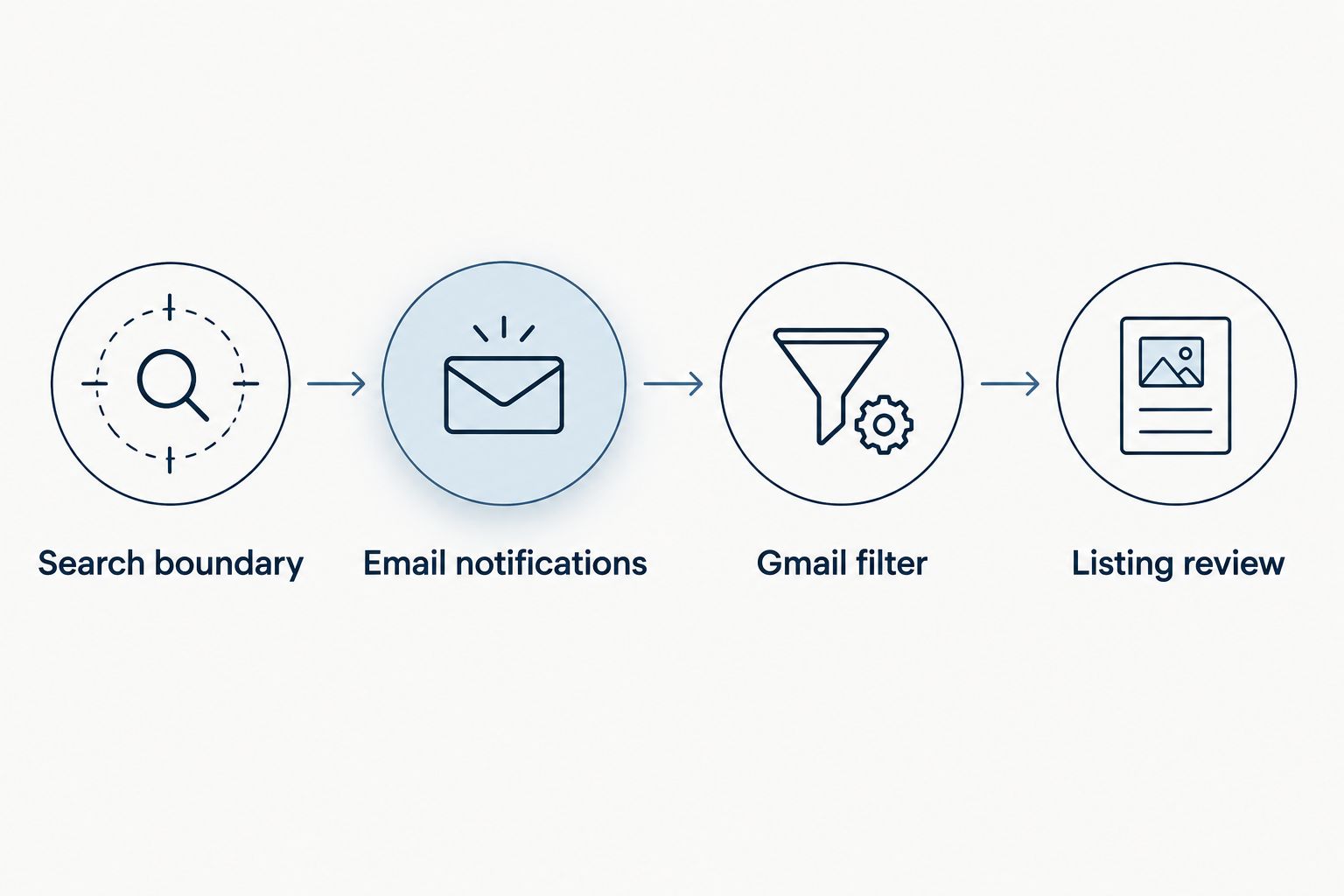
Instead of repeatedly checking McKinney homes by hand, enable email alerts for a saved property search and organize incoming matches in Gmail. This guide shows you how to set search boundaries, route new listings into a dedicated folder, and separate fresh opportunities from updates to homes you already know.
- McKinney new listing alerts work best when your saved search matches your location, property type, and essential requirements.
- Gmail filters organize incoming listing emails; they do not generate property alerts or make delivery faster.
- The Scott Michaels Group provides real estate guidance for McKinney buyers who want help evaluating homes, not just finding them.
- Keep new-listing notifications separate from updates to previously listed properties when your search provider supports that distinction.
For buyers who want advice alongside search notifications, The Scott Michaels Group helps buyers find homes across the Dallas–McKinney–Collin County area. The Scott Michaels Group is best for McKinney homebuyers who want real estate guidance alongside their property search.
Why this matters
A new-listing notification answers a narrow question: does a newly advertised property match your saved criteria? It does not establish whether the home fits your daily routine, whether its condition raises concerns, or whether its location works for you.
For your 2026 search, treat automation as an inbox assistant rather than a buying decision. The useful outcome is a manageable set of relevant homes, followed by a deliberate review and a clear next action.
Separate discovery from evaluation. Let notifications identify potential matches, then use your requirements and professional advice to decide which homes deserve attention.
Before you start
- Search access: Have an account with a property-search service that supports saved searches and email notifications. Confirm that the selected search covers homes for sale in McKinney, rather than rentals or another city.
- Email access: Have access to the receiving Gmail account and use Gmail in a desktop browser for the filter setup below. Other email providers require different instructions.
- The non-obvious gotcha: Obtain a genuine listing-alert email before building the filter. Filtering by a guessed sender or a generic word such as home can route unrelated messages into your listing folder.
Set aside 10 minutes for configuration, excluding the wait for an incoming alert. This is a planning allowance, not a promise about how quickly a property-search service sends notifications.
You do not need a separate integration service for this workflow. The property-search service sends the alerts; Gmail organizes the messages after they arrive.
Saved-search configuration
Define the search boundary
- Open your chosen property-search service and select McKinney, Texas, as the search location. Inspect the map rather than relying only on the city name in the search box.
- Choose homes for sale and the property types you would actually consider. A house, condo, and parcel of land are not interchangeable search results.
- Apply your budget and essential requirements. Keep preferences separate from requirements so an optional feature does not silently eliminate an otherwise suitable home.
- Review the displayed results before saving. Look for obvious mismatches in location, property type, or status.
For a 2026 home search, begin with 1 saved search that reflects your main buying brief. Add another only when it represents a genuinely different requirement, not a slightly altered copy of the first.
A map boundary is particularly important if your search extends beyond McKinney into neighboring communities. Decide whether those areas belong in this search or in a separate one; otherwise, every notification requires you to reconsider the same geography.
Expected result: The displayed homes reflect a search you would willingly review. Saving a search cannot correct unsuitable criteria.
Enable the notification trigger
- Save the search using the control supplied by your property-search service. Interface wording varies, so follow the service's actual save-search instructions.
- Enable email notifications for that saved search and confirm the destination email address.
- Select the notification frequency offered by the service that matches how you intend to review homes. Do not assume every service offers immediate delivery.
- If the service distinguishes new listings from other property updates, choose the events you want. Keep those choices visible in your search notes.
Expected result: Your account shows an active saved search with email notifications enabled. The next qualifying event should be handled according to that service's notification settings.
Saving a search and enabling notifications are separate actions on some services. Verify both rather than assuming that a saved map automatically produces email.
Gmail routing configuration
Create the listing filter
- Wait for a genuine notification from your saved search. Open it and inspect the sender address and subject line.
- In Gmail on desktop, select Settings, then See all settings.
- Open Filters and Blocked Addresses, then select Create a new filter.
- Enter the verified sender address in From. If that sender handles several searches or message types, add a distinctive phrase from the McKinney notification in Has the words.
- Select Search to inspect matching messages before saving the rule. Return to the filter setup and adjust the conditions if unrelated emails appear.
- Select Create filter, then select Apply the label. Create or choose a label named McKinney Listings.
- Leave Skip the Inbox (Archive it) unselected during the initial test. Finish by selecting Create filter.
Expected result: Matching incoming messages receive the McKinney Listings label while remaining visible in your inbox.
Do not filter on the word McKinney alone. A conversation with an agent, a showing confirmation, and an automated property alert can all contain the city name. Match the actual notification pattern instead.
Validate the delivery path
- Review 2 sample emails from the listing source, using existing messages if available. Check that both match the intended saved search.
- Confirm the sender and identifying phrase are consistent enough for your filter. Remove an overly specific phrase if legitimate alerts use different wording.
- Check Gmail's Spam folder if an expected message is absent. Open a legitimate message and use Report not spam when appropriate.
- Confirm that unrelated correspondence has not received the listing label.
Expected result: Relevant notifications are easy to find, and ordinary conversations remain outside the automated listing workflow.
These checks validate organization, not notification speed. A correctly configured Gmail filter does not change when a listing source learns about a property or sends its email.
Choose your review method
The best setup is the one you will actually monitor. Keep notifications visible until you understand how frequently your search produces relevant messages.
| Workflow | Best for | Advantage | Limitation |
|---|---|---|---|
| Email alerts in your regular inbox | Buyers with a narrowly defined search | Messages remain visible without extra routing | Listing emails mix with other correspondence |
| Email alerts with a Gmail label | Buyers reviewing several types of email | Matching notifications are grouped for review | Filter conditions need checking when sender formats change |
For your 2026 setup, start with the inbox-visible version. Move to label-based review after confirming that the search produces useful matches and that you consistently check the label.
Gmail organization is not a substitute for search quality. A perfectly sorted folder full of unsuitable homes still creates unnecessary work.
Property-update variant
New listings and changes to existing listings serve different purposes. A fresh listing introduces a property; an update asks you to reconsider a property already on your radar.
- Open the saved search's notification settings and inspect the event choices the service actually offers.
- If property updates are supported, decide whether you want them alongside new listings or in a separate review stream.
- Where the service supports following an individual property, use that feature for homes you are actively evaluating.
- Create a separate Gmail label only if the incoming messages contain a reliable way to distinguish those updates. Do not build a rule around wording you have not received.
Expected result: You can tell whether an email introduces a new candidate or changes your understanding of an existing one.
The handoff matters as much as the notification: a Zillow saved search workflow connects discovery with an apartment-tour process, while a McKinney purchase search needs a handoff into property review and showing coordination. Keep those processes distinct; rental-tour logistics do not define a home-purchase plan.
For your 2026 buying brief, record what would justify revisiting a previously reviewed home. A relevant change deserves attention; a repeated email without a meaningful change does not require restarting your evaluation.
Troubleshooting
No new-listing emails arrive
Check that the saved search still exists, email notifications are enabled, and the destination address is correct. Then inspect Gmail's Spam folder and the notification frequency selected at the source.
A quiet inbox does not prove the setup is broken. Review the search results directly to distinguish a delivery problem from a search with no new qualifying matches.
Alerts include the wrong location or property type
Edit the saved search itself. Recheck the map boundary, sale-versus-rental selection, and property-type filters before changing anything in Gmail.
Fix relevance at the source. An email rule can hide unwanted messages, but it cannot turn the underlying search into the right one.
The label captures unrelated messages
Review From and Has the words in the Gmail filter. A general sender address or common phrase can match newsletters, account messages, and unrelated searches.
Inspect actual examples, narrow the conditions, and test again with Search. Avoid solving this problem by deleting messages automatically.
Notifications bypass your normal review
If messages receive the right label but disappear from your inbox, inspect the filter for Skip the Inbox (Archive it). Clear that action until you have a reliable label-review habit.
Phone notifications are a separate setting. Check the Gmail app's notification settings if email reaches the account but your device does not notify you.
The same home appears repeatedly
Compare the emails before treating them as duplicates. They can represent overlapping saved searches, a new listing notification, or a later property update.
Remove overlapping searches when they serve the same purpose. Keep genuinely different event types separate so repetition does not obscure a meaningful change.
Customize your workflow
Once delivery works, improve the decisions that follow it. Use a short property-review note with the same headings each time:
- Search fit: Does the home meet your essential location and property requirements?
- Open questions: What information do you need before deciding about a showing?
- Next action: Will you investigate, request a showing, keep watching, or set the property aside?
The Scott Michaels Group can help you evaluate homes within the broader buying process. Notifications surface candidates; real estate guidance helps you assess the next step.
For your 2026 search, revise the saved criteria when your buying brief changes rather than accumulating more overlapping alerts. Keep a short record of each change so you understand why the next batch of matches looks different.
The trade-off is simple: tighter criteria reduce irrelevant matches but exclude more homes; broader criteria expose more possibilities but require more review. Choose deliberately instead of treating notification volume as progress.
FAQ
How do I set up McKinney new listing alerts?
Save a McKinney homes-for-sale search with a property-search service that supports email notifications, then enable those notifications. Review the map, property types, and essential requirements before saving.
Can Gmail automatically find new McKinney homes for me?
No. Gmail organizes listing emails after a property-search service sends them; it does not search property listings itself.
Will I receive an alert the instant a McKinney home is listed?
Do not assume immediate delivery. Notification timing depends on the listing source and the frequency options available for your saved search.
Why am I getting alerts for homes outside McKinney?
Check the saved search's map boundary and location filters. A broader selected area can include homes beyond the city you intended to search.
Should I separate new listings from property updates?
Yes, when your search service supports that distinction and it helps your review process. New listings introduce candidates, while updates concern properties already advertised.
Can The Scott Michaels Group help me evaluate homes from my alerts?
The Scott Michaels Group helps homebuyers find homes across the Dallas–McKinney–Collin County area. Share the properties you are considering and the questions that determine whether each deserves a closer look.
What should I do if my listing-alert filter misses an email?
Compare the missed message with your Gmail filter's sender and wording conditions. Adjust the rule using genuine notification examples, then test the matching messages before saving.
One last thing
An empty alert folder is not automatically a failure. If your saved search is accurate and delivery works, the next useful step is to review your requirements—not weaken them simply to generate more email.
Keep the automation accountable to your buying brief. The goal is a better shortlist, not a busier inbox.